
This page explains how you can use IMMR digital toolbox to lunch professional events and webinars, through minimal effort.
Table of content
1. How to create a new webinar landingpage and edit content
2. How to connect landingpage to Mautic
3. How to add exit intent pop-up to landingpage
4. How to add counter / progress bar + list of latest registrants
5. How to configure SEO settings
First, decide if you want to do a local event in your language, or an international event open for people all over the world. If doing an international event, we recommend cooperating with all other IMMR organizations that want to. Send an email to immr@framagroupes.org to look for others that might be interested in being co-organizers togheter with you!
1. How to create and edit a webinar page
Follow these steps:
1. Navigate to wordpress posts
2. Search for the post with the name "Standard webinar IMMR"
3. Clone that post, give it a new headline, and change category to "Webinars". Then save as draft or publish.
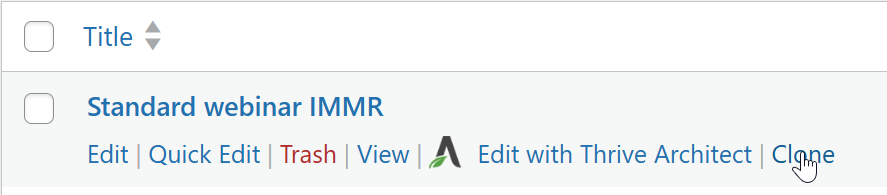
4. Open the post, give it a new headline, change category to "Webinars". Then save as draft or publish.
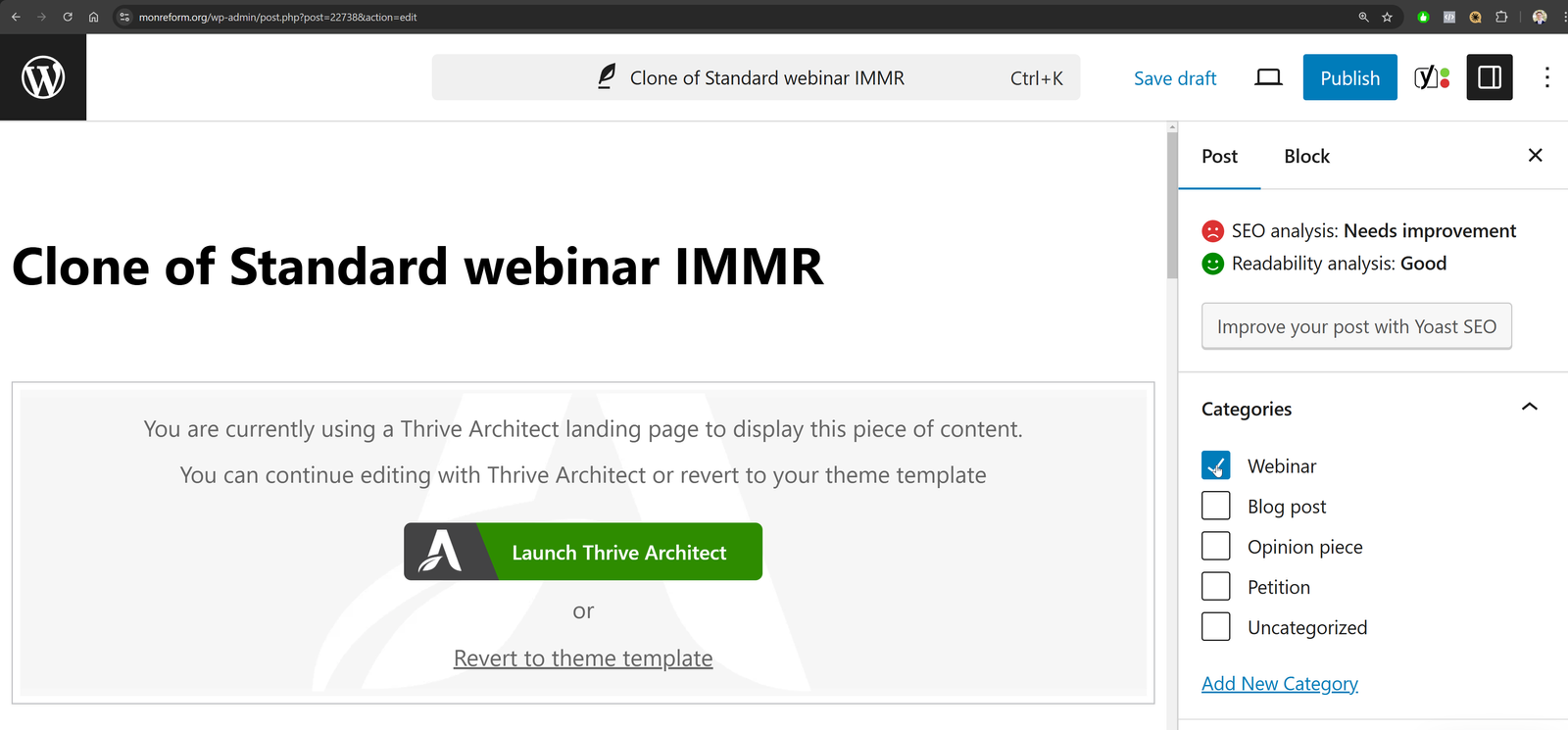
4. Click Launch Thrive Architect (Not the wordpress editor!) to edit the content.
5. Configure the layout of the landingpage as you wish, until you are happy with the content and layout!
How to edit the content
- Click on the "+" button to the right in the top to add new content to landingapge (images, text, buttons etc)
- Click on the to object you want to interact with in the middle of the screen, and edit it there.
- More advanced settings for each is in the panel to the left.
- NOTE: TURN OFF AD BLOCKERS, otherwise the editor will not work!!
Watch Thrive Architect for tutorials, if you want to learn more.
2. How to connect landingapge to Mautic
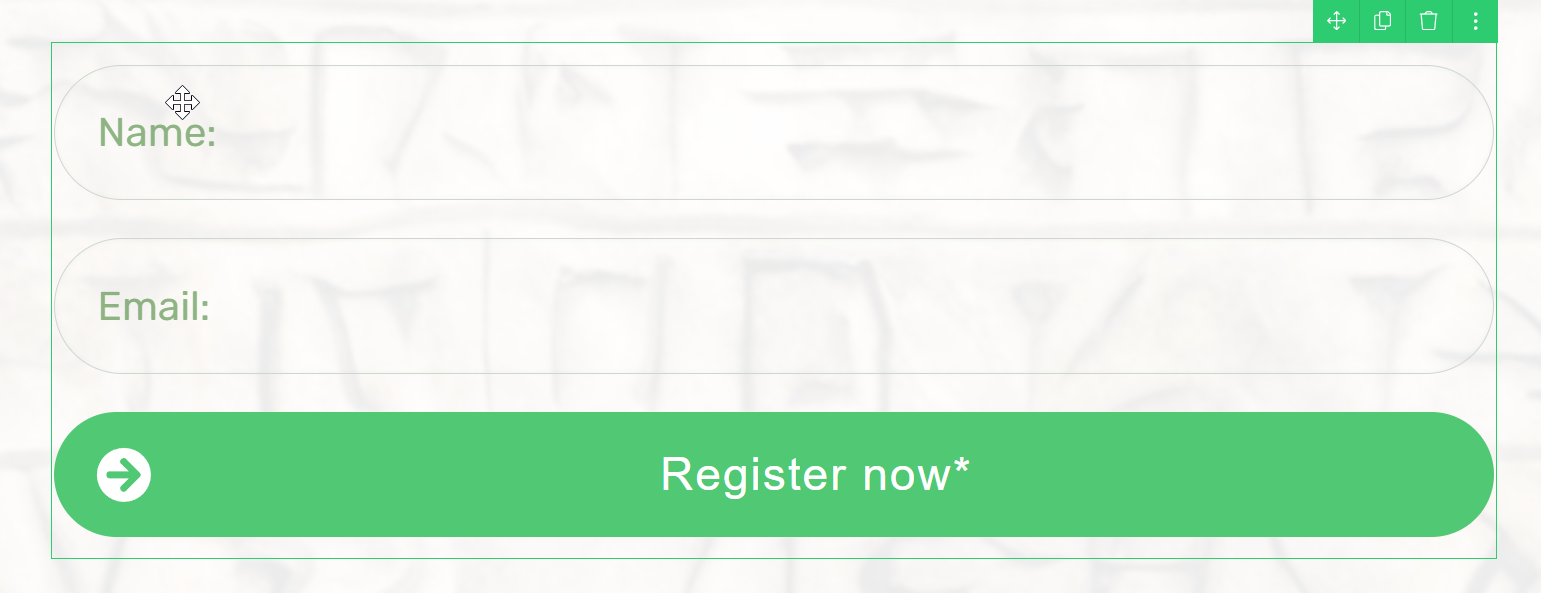
1. Click on the form for registration at the landingapge:
2. See all options in the panel to the left:
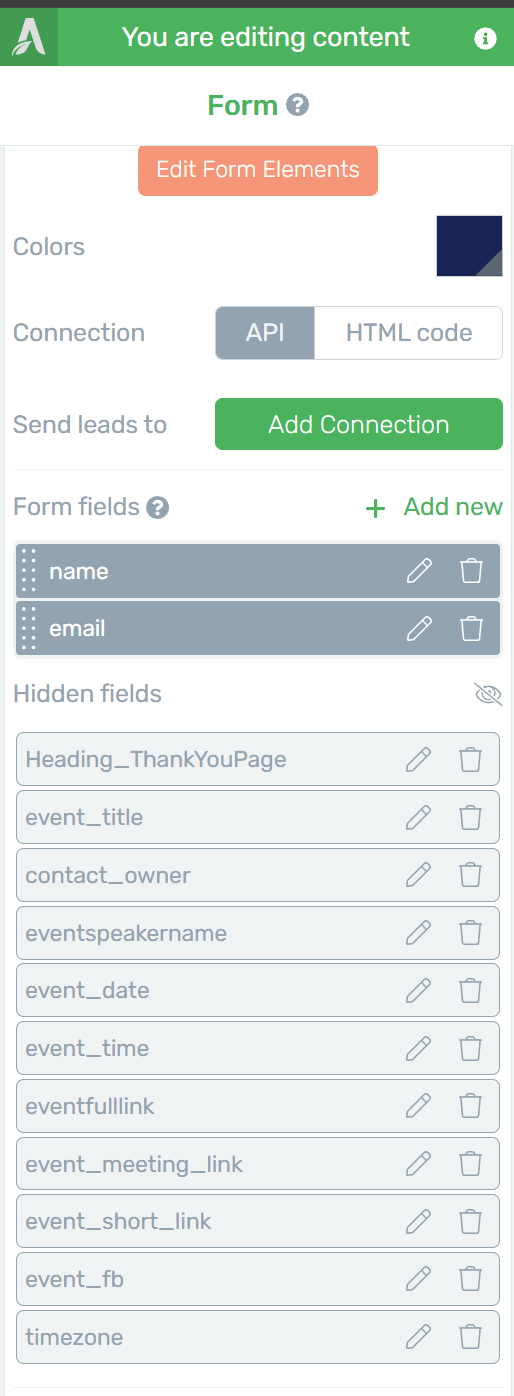
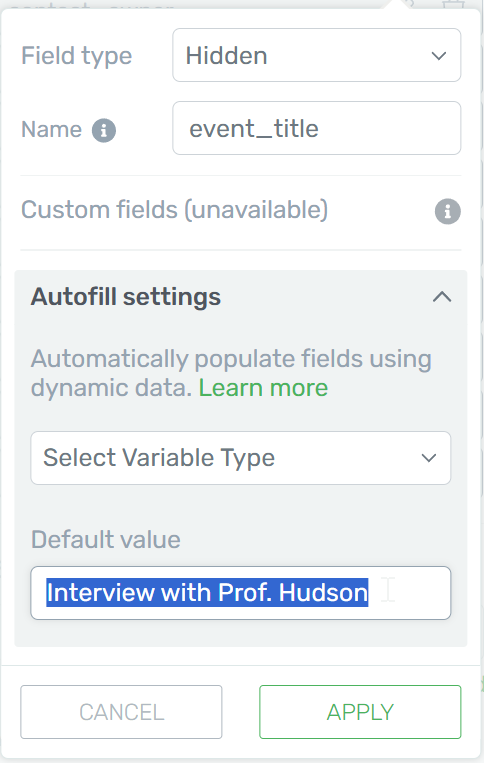
3. Click on the pen for each field and fill in all relevant information about the webinar as "Default Value".
3. How to add exit intent pop-up
Sometimes users visit a landingpage, and think that the subject is interesting, but they don't register because they cannot participate that date or they think this event is not interesting enough. However, they are in general intersted. To not lose these people, it is important with an exit intent pop-up. When the user tries to exit the page, a pop up comes and ask if they would like to receive the newsletter.
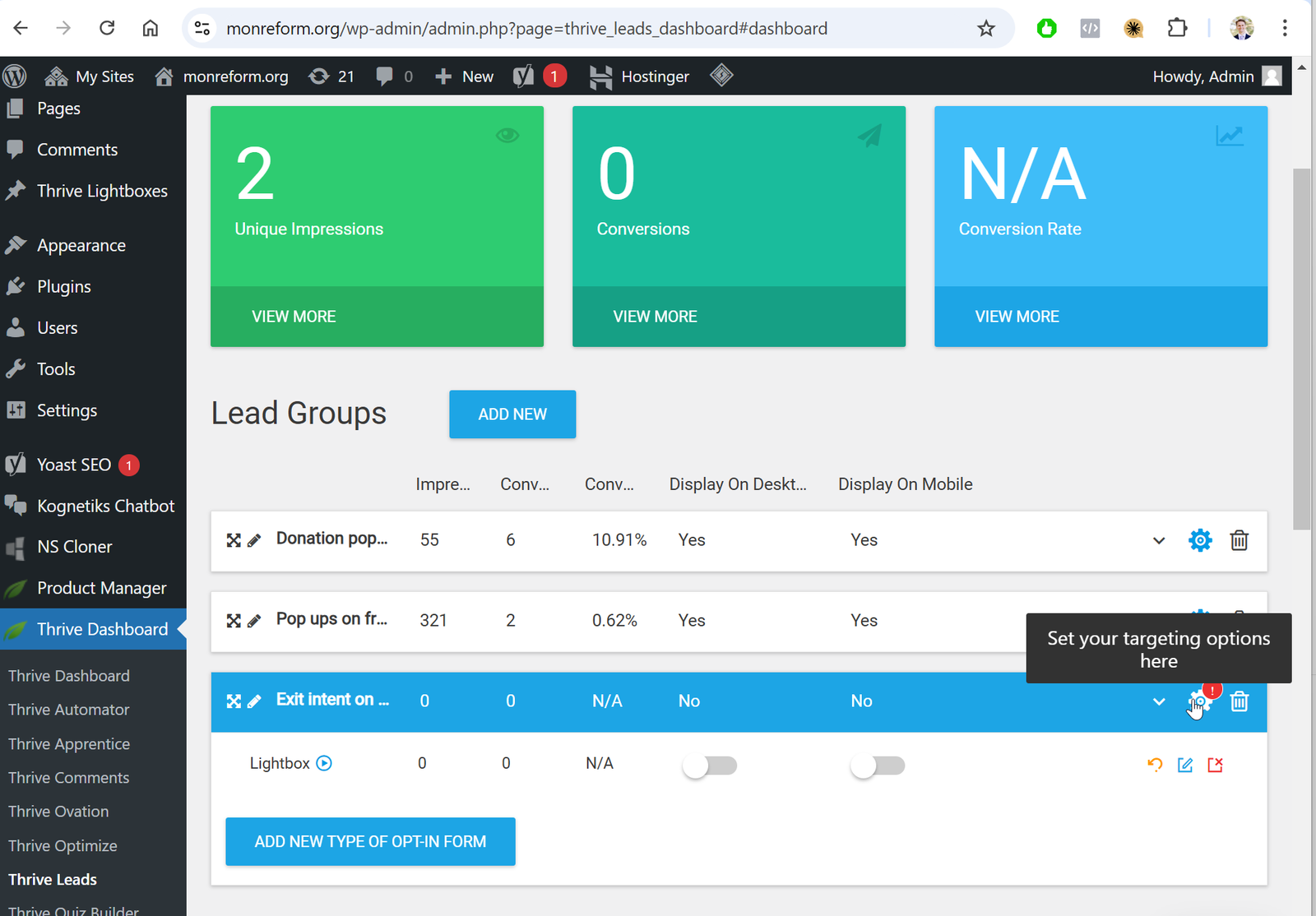
1. Go into Thrive Dashboard --> Thrive Leads --> Exit intent on webianrs Lead group --> click on settings.
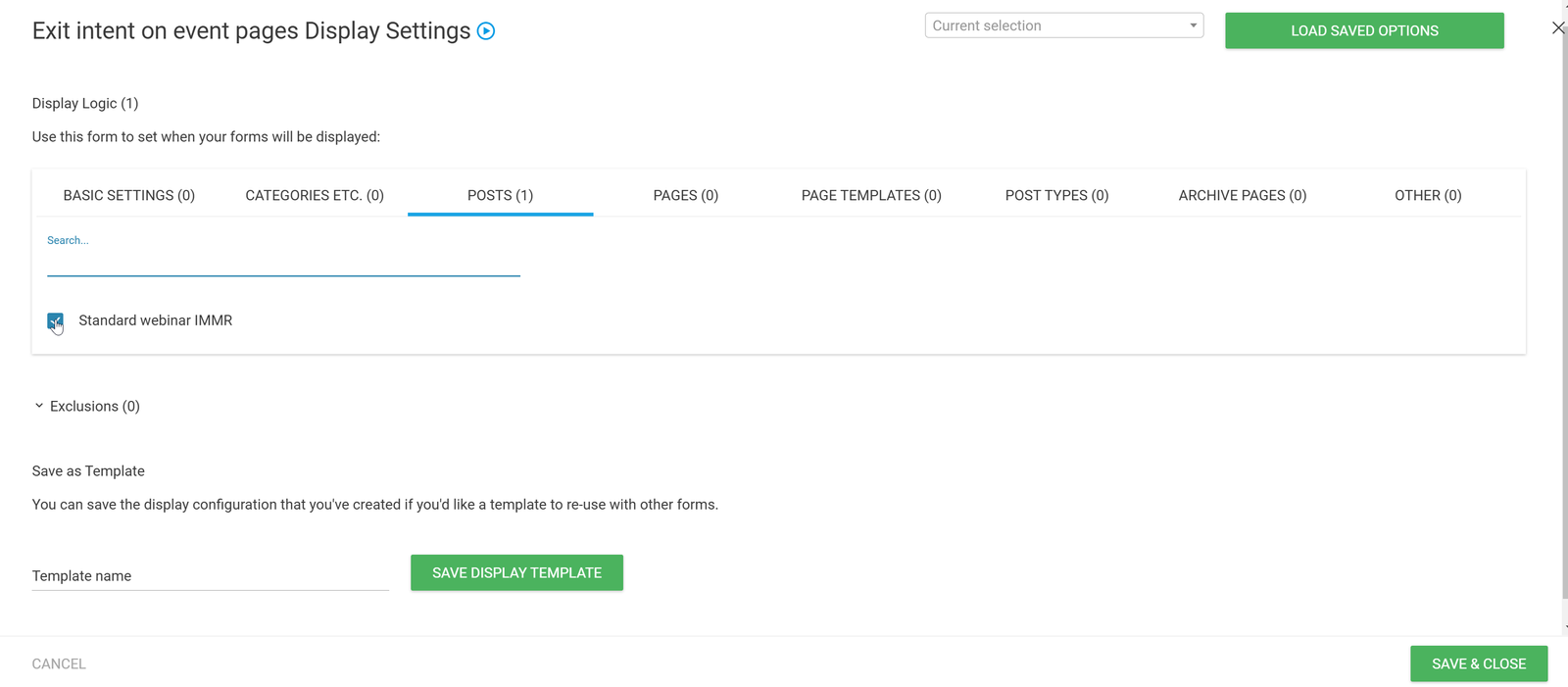
2. Click on Posts (Note that webinar landingapges always are posts - because they can then be categorised and indexed by wordpress!)
3. Search for the headline of your webinar landingapge
3. Make sure box is checked, save and close.
4. How to add counter / progress bar + list of latest registrants
To do that, add shortcode wherever you want in text on the page:
{mautic_registrants event="IMMR_Webinar_Hudson_2024_04" count_text="registrants" limit="5" action_text="registered" lang="en"}
Note that in a real shortcode, { should be substituted by [ and } substituted by ]
This will generate the following:
To test and confirm that it is working, you can use this test-page:
https://monreform.org/wp-content/plugins/IMMR-mautic-plugin/testhook.html
When used for real, new registrants are first going into Mautic, then Mautic sends a webhook that updates the local cache of latest regsitrants for the event. You can send such a webhook manually through this test-hook page.
Arguments in the shortcode:
- event: takes any Mautic tag as input, search for all contacts with this tag, counts them.
- limit: how many contacts that should be shown in the list
- action_text: can be for instance "registered" or "signed the petition" depending on what action the contact did to get the tag.
- lang: short code in two letters for the language you want to use.
Langauges supported so far:
5. SEO settings
Remember to always update the SEO settings, most important is:
1. Settings for Facebook sharing picture and text
2. Settings for Twitter/X sharing pictire and text
3. Settings for search engines like google.
You update the settings through the YOAST SEO plugin. To access it:
1. Go to wordpress editor of the page/post (Note Thrive architect!)
2. Scroll down.
3. Edit SEO and Social settings here:
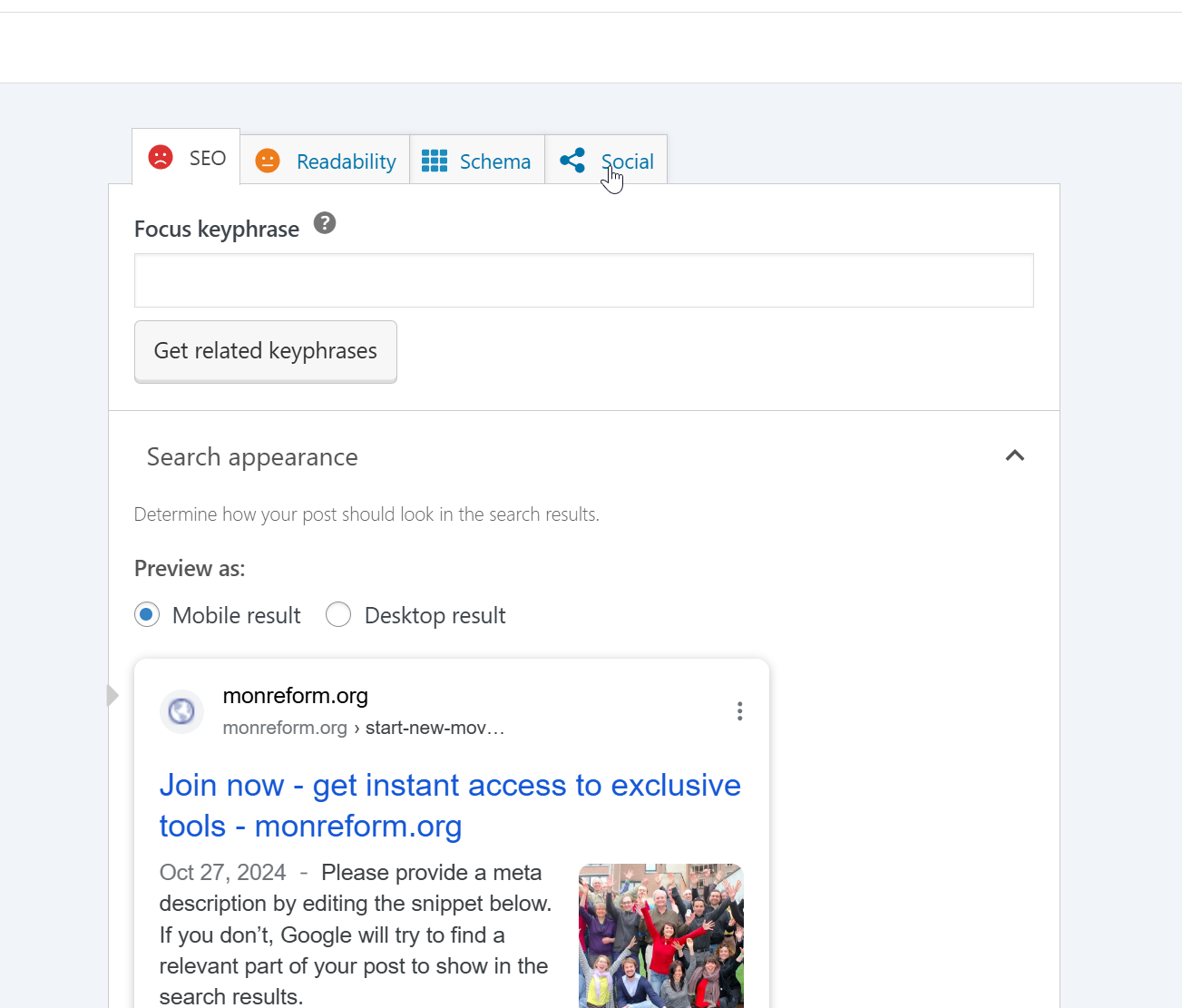
This is important to make sure the page looks good when shared in social media! To preview the result, try copy pasting the link to the landingpage in for instance Facebook and watch if the result is as intended.
Example of previewing:
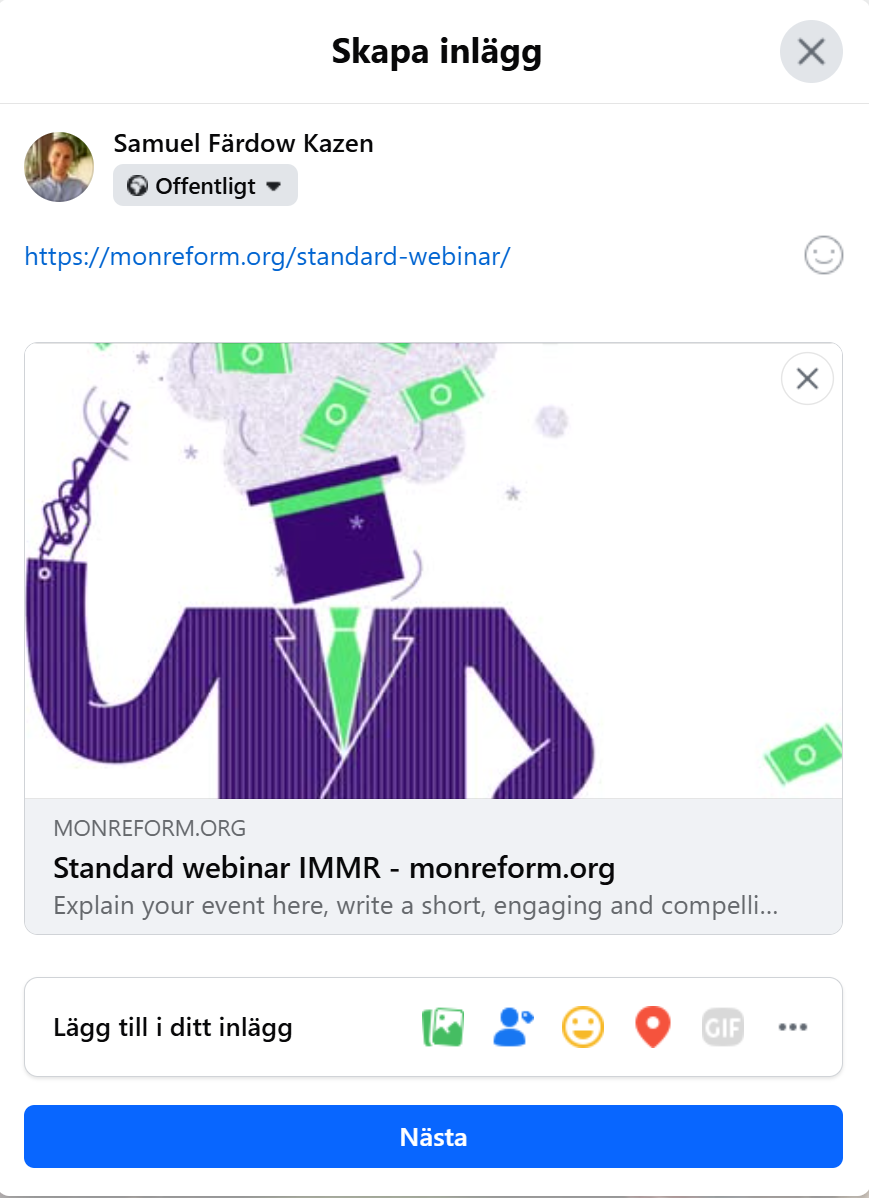
NOTE! If you are not happy with the result and update the layout and save in wordpres, Faebook have cached your images etc so you will not be able to see your changes if not:
- Modify the link, but with something irrelevant! For instance: https://monreform.org/standard-webinar?link=asdf
Then facebook will load the new contant again!
6. A/B test landingapage
If you want to build a really high converting landingpage that convinces people to subscribe, you can A/B test different layouts, contents etc on the landingapge. Thrive have really good tools for this. Here is how to do it:
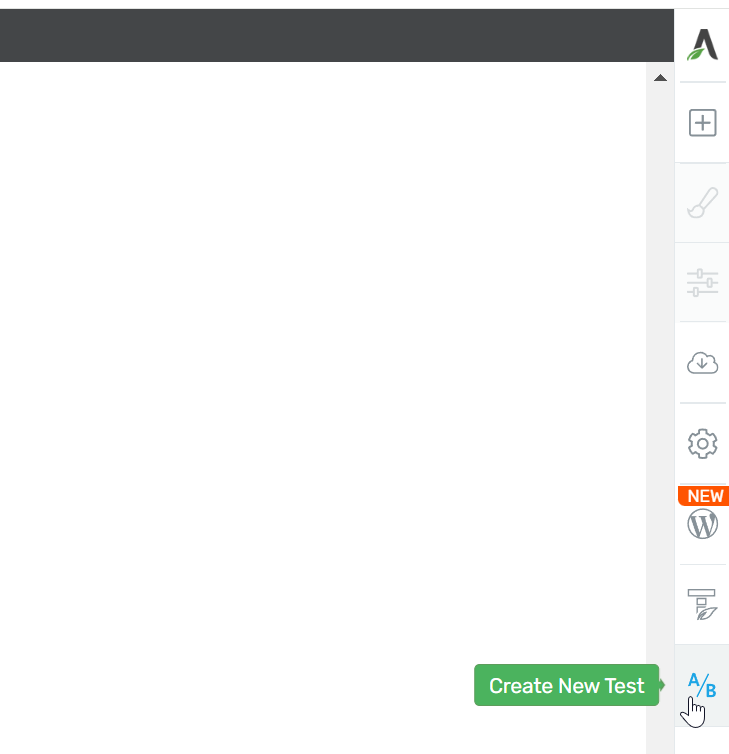
1. Click A/B test in the panel to the right in landingapge thrive architect editor
2. Add new version of the page.
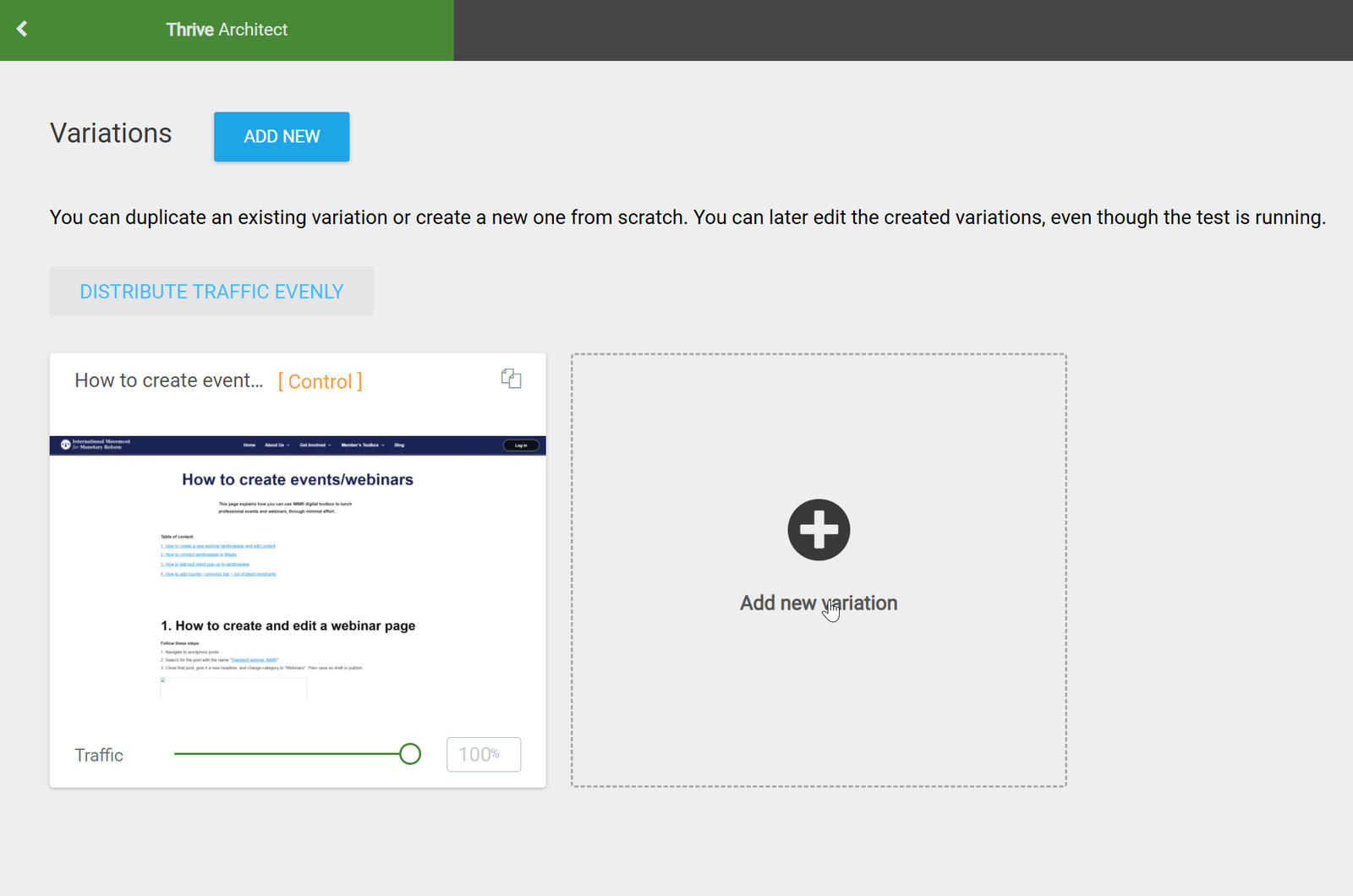
You can A/B test as many versions as you want to, but if you don't think you will get more than 100 registrants, don't test more than 2 versions to get significant data. However, thrive will calculate automatically how likely it is that the best performing landingpage will beat the original.
2. To follow live how your test is going, go into wordpress admin dashboard, thrive dashboard and click thrive optimize to se your running A/B tests. It is recommended to do some pre-testing, before really launching the webinar.
Note that if you first launch to your newsletter followers, you will get high conversion rates. Then when launching on social media, google ads etc, conversion rate will shrink. To get really good data, build separate landingpages for different audiences and test how it performs on them. You can also do tests separated in time. For instance, first A/B test against your email list, after a couple of days - restart the test and see if same page is still performing best.
7. Launch the webinar
When you decide to launch the webinar, you can try first at social media and organic sharing, just to see how it performs if you need to improve it. You can conduct some A/B testing. If you think it performs good enough, launch it with email.
In Mautic, you can also do A/B testing on campaign mail content if you prefer to a smaller group of recivers to see which headline is most efficient before launching it to everyone. We will explain how A/B testing in Mautic works here.
When someone registers for the webinar they will get an automatic thank you email. The template looks like this:
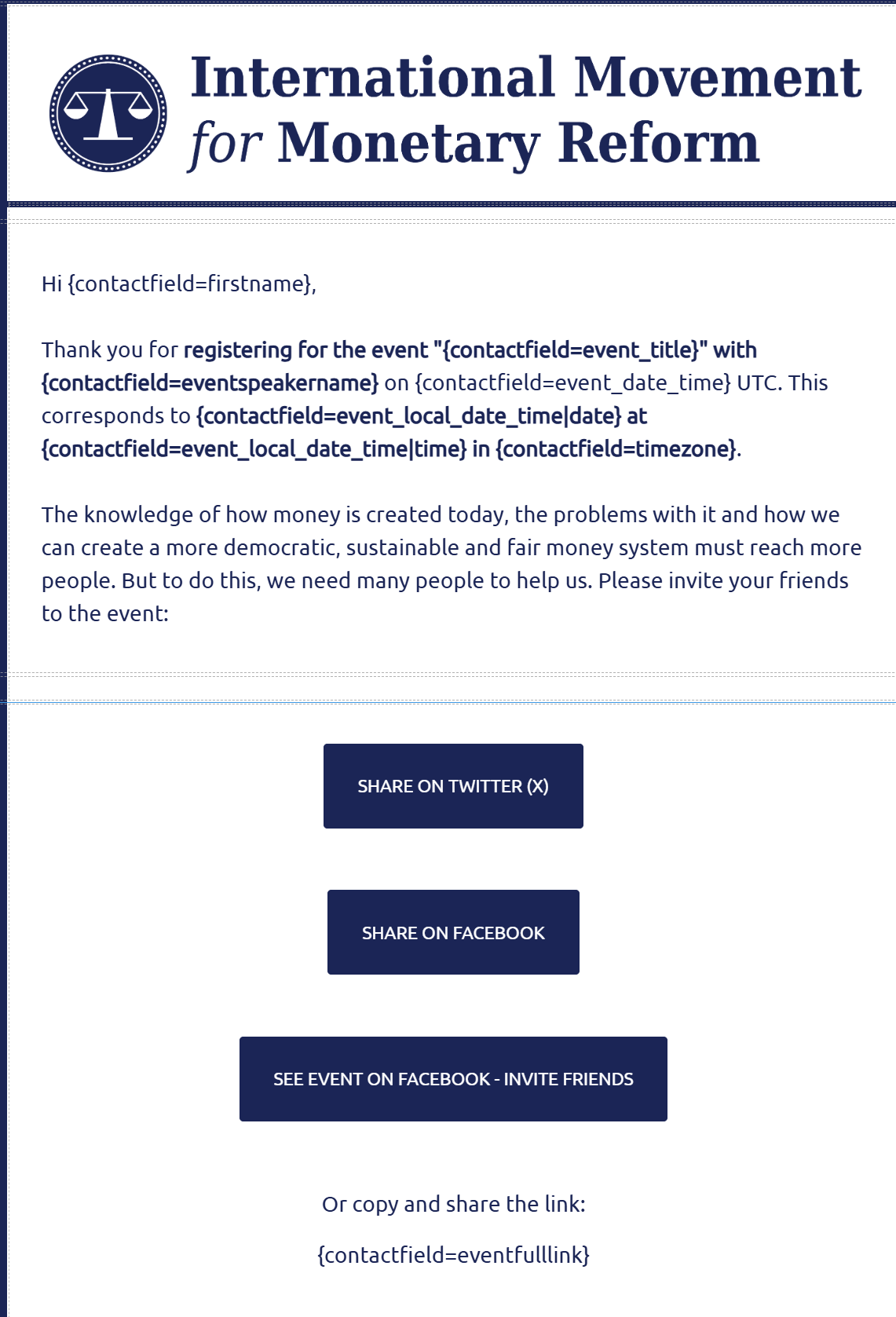
You can add translations of this template into your own language. If you do that, add also your organization's logo etc. Then the contacts get a more personalized thank you from the organization inactive in their country. To do that: go to channels --> emails in mautic, clone the "IMMR general event/webinar confirmation email" - translate contet (but not shortcodes), save as a translation of the original email.
Translations are automatically sent to every contact that registered with this language sitting in their web-browser. If no translations exist, the contact get the emails in English.
For languages used by multiple organizations, like English, we use the IMMR layout and logo for now. We hope this is ok for our member organizations in English speaking countries, we can however create an updated system for this in the future where different organizations can have their own thank you emails also in international events. But note: In local events that you organize in your local country, you can copy paste the event system and always use your own thank you email layout if you want to!
Note! Before launching the webinar email: Remember to create Facebook Event Link and include as parameter on your landingpage! This is passed on to Mautic so that registrants can help invite their friends on Facebook to the event!
8. Automatic reminder emails for the webinar
Here is how the reminder system for the webinar works:
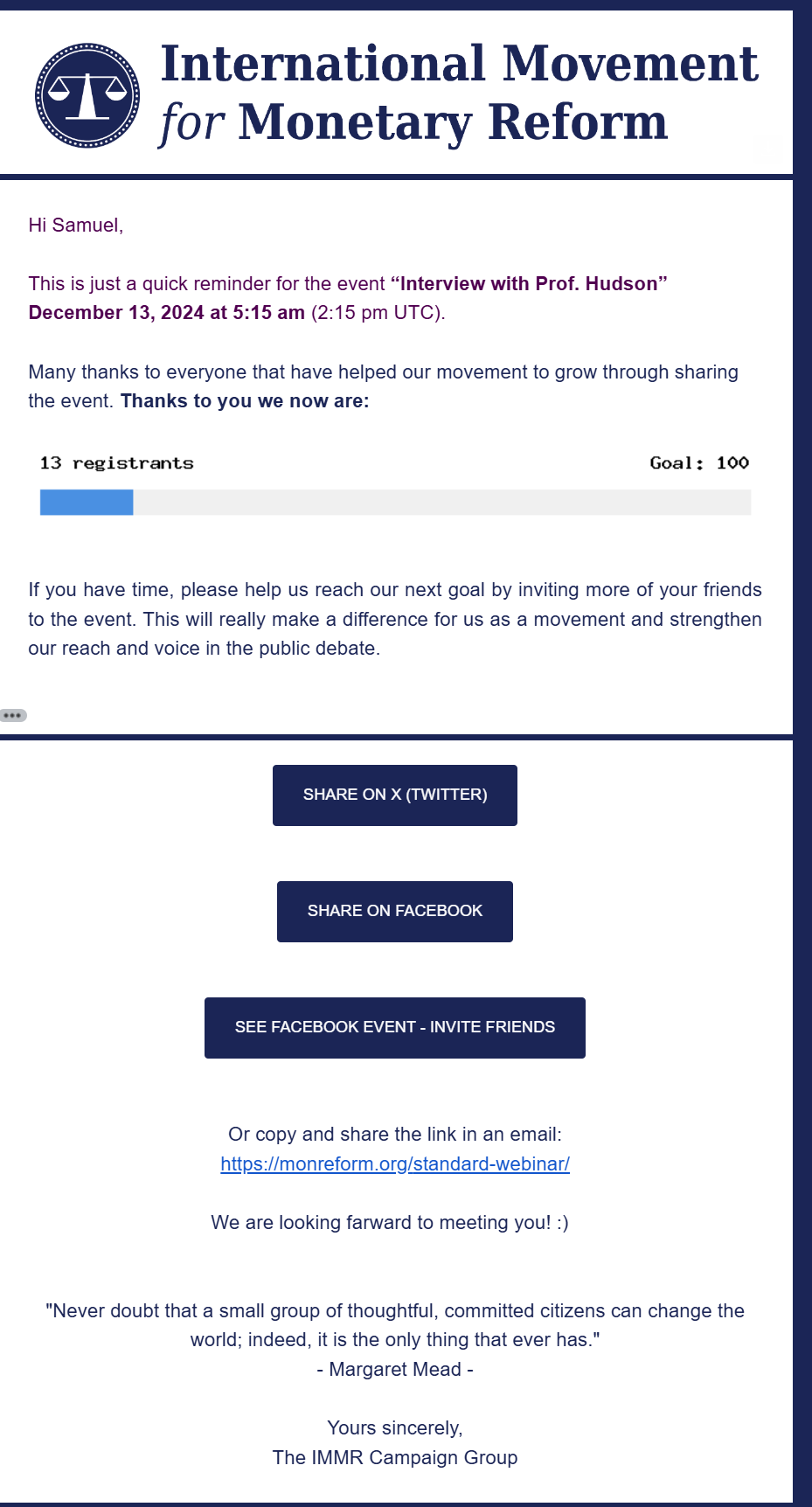
1. If the contact registered more than two weeks before an event --> send "IMMR webinar reminder email 1" 1 week before the event
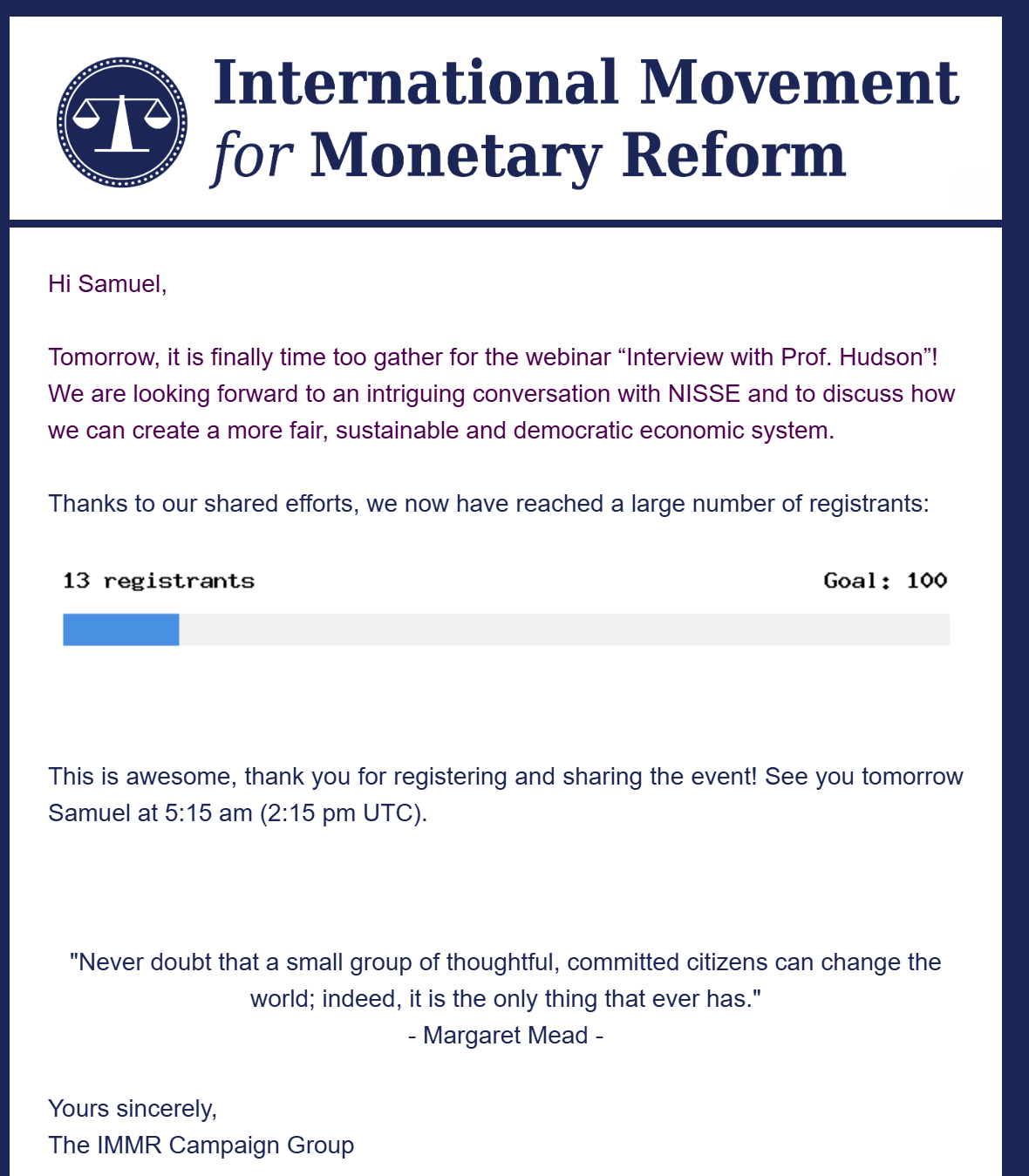
2. Send reminder email 1 days before event
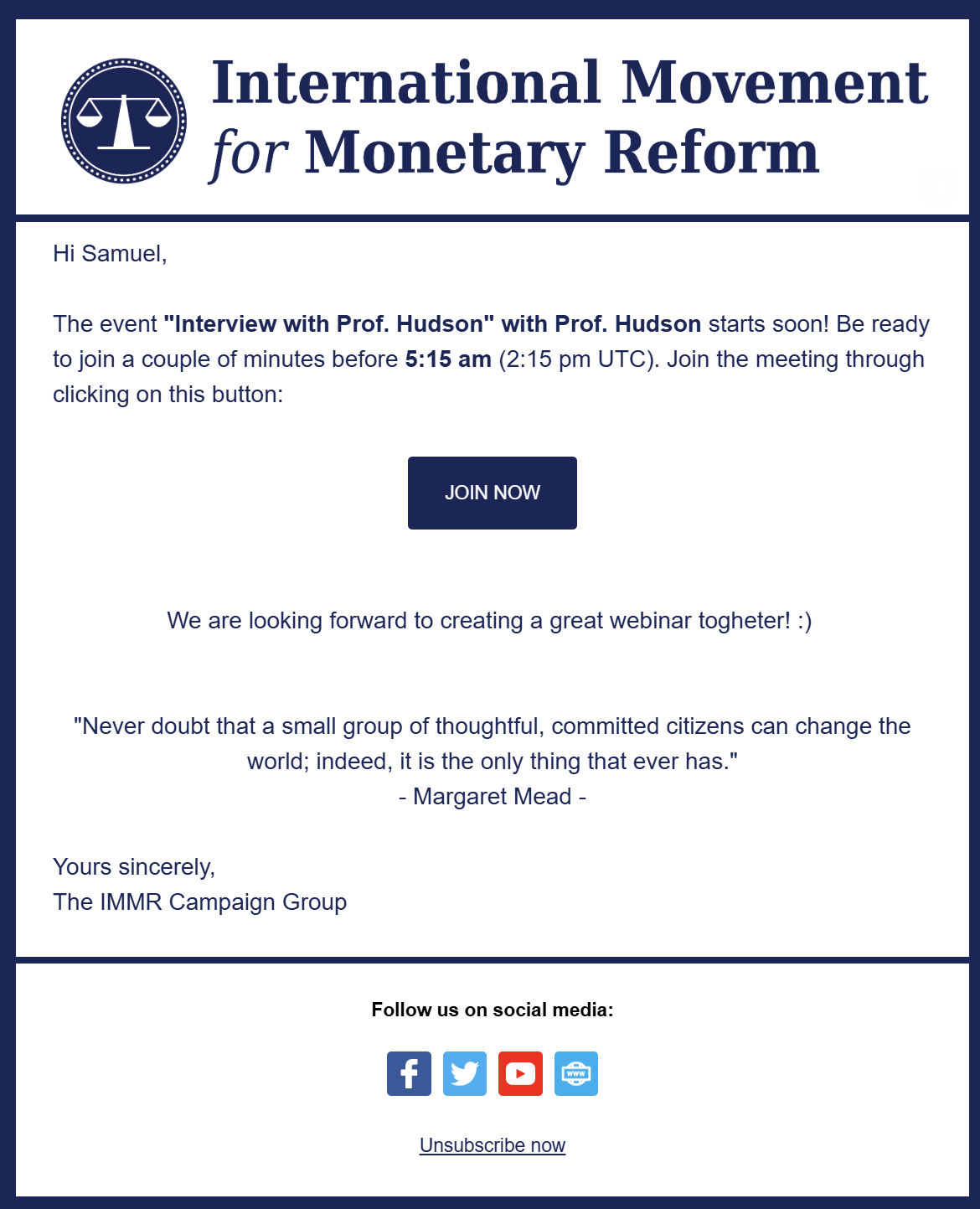
3. Send reminder email 1-2 hours before event
1. Reminder 1: 7 days before
(If event is on Tuesday, this is sent the Tuesday the week before)
2. Reminder 2 - 1 day before
Only sent if contact registered more than 2 days before event
3. Final email 1-2 hours before with video-link
4. If events started more then 1 hour ago
Email is sent saying that the event already has occurred.
9. Conduct the webinar
General ideas and best practices:
- 1 h 30 min, no longer than that, people don't have energy for 2 hour digital meetings. However, it is possible to continue with the remaing nerds qut Q/A session for 30 min, but never announce longer than 1.30 because this can decrease registration rate.
- Have a concise introduction - 3-7 min and frame the subject, its relevance for monetary reform. Try to be really positive and engaging! Create the feeling that we are here many people from all over the world and that our mission is very important and that we are a growing movement.
- Proposed schedule:
- 5 min introduction
- 35 min lecture by invited sepaker
- 20 min interview with speaker (prepared good questions)
- 30 min Q/A from audience.
- End webinar formally, but continue with questions before the webinar.
10. After the webinar
All energy you have put into building a good landingpage - it can continue to generate more subscribers for our movement! General plan after webinars:
A. Videos on youtube
1. Cut out best movements from the webinar - do a 1-5 min short recap version of the video
2. Publish only short version publicly on Youtube
3. Add link to the landingpage for the webinar in end of the public youtube video and in the comments there.
4. Publish the full webinar as unlisted on youtube so people cannot search for it and find it there
B. Create a second landingpage for the event
1. Clone the template "Second landingpage for publishing video after event", give it new describing name, for instance "Content after webinar X". Note that this is a wordpress page - not a post - because it should be static an not accessible and not filtered into categories etc.
2. Publish full video there
3. Publish transcripts in different languages
4. Publish subtitles.
5. Publish extra content such as Q/A with the guest.
6. Note that you have to manually add the link to your original landingpage (C bellow) to the social share buttons on this page! We will probably automate this later.
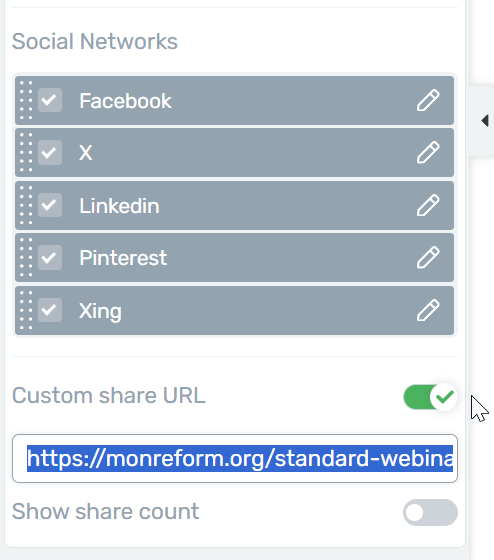
Note! If you want to use a new template or layout from thrive for your new landingapge, here is what you need to do: + add element --> template --> "IMMR obligatory content on second landingpage for publishing video". Note that if you don't include this box, the new subscriber will not be properly added to our email list!
C. Convert original landingpage
Convert the landingpage in the following way:
1. Edit text so it is clear that the event has already been, but you can register to watch it now.
2. Edit the redirect link of the page to https://monreform.org/thank-you-for-subscribing-after-webinar/ (not your second landingpage here!)
3. Add new hidden field (or change name of for instance the video link field to "second_landingpage_url" and add the link to your second landingpage there!
4. Add the short code for direct access above the registration form which include link to your second landingpage. If the user already subscriber for IMMR organization's email list, they can click this link to directly visit your second landingpage without having to register again!