
This page explains short version of how you can use IMMR digital toolbox to lunch professional events and webinars, through minimal effort. You can read the comprehensive guide here.
1. How to create and edit a webinar page
Follow these steps:
1. Navigate to wordpress posts
2. Search for the post with the name "Standard webinar IMMR"
3. Clone that post, give it a new headline, and change category to "Webinars". Then save as draft or publish.
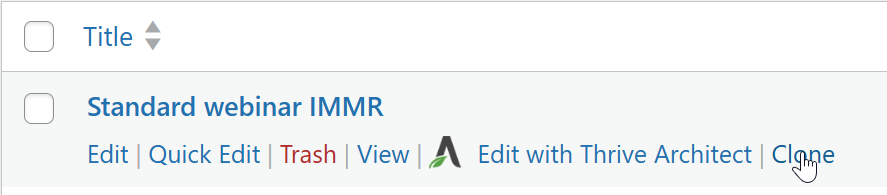
4. Open the post, give it a new headline, change category to "Webinars". Then save as draft or publish.
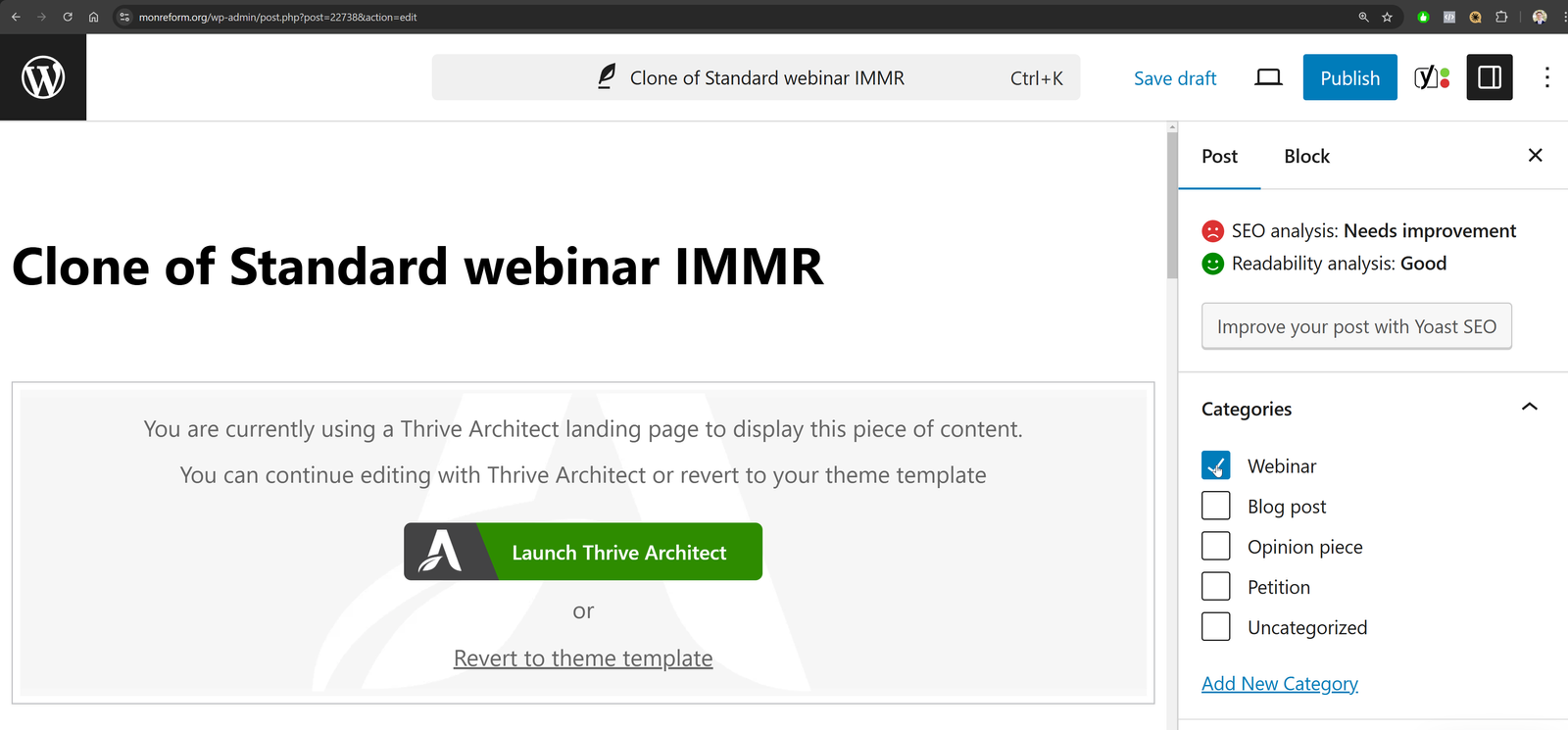
4. Click Launch Thrive Architect (Not the wordpress editor!) to edit the content.
5. Configure the layout of the landingpage as you wish, until you are happy with the content and layout!
Watch Thrive Architect for tutorials, if you want to learn the drag and drop editor more.
2. How to connect landingapge to Mautic
1. Click on the form for registration at the landingapge:
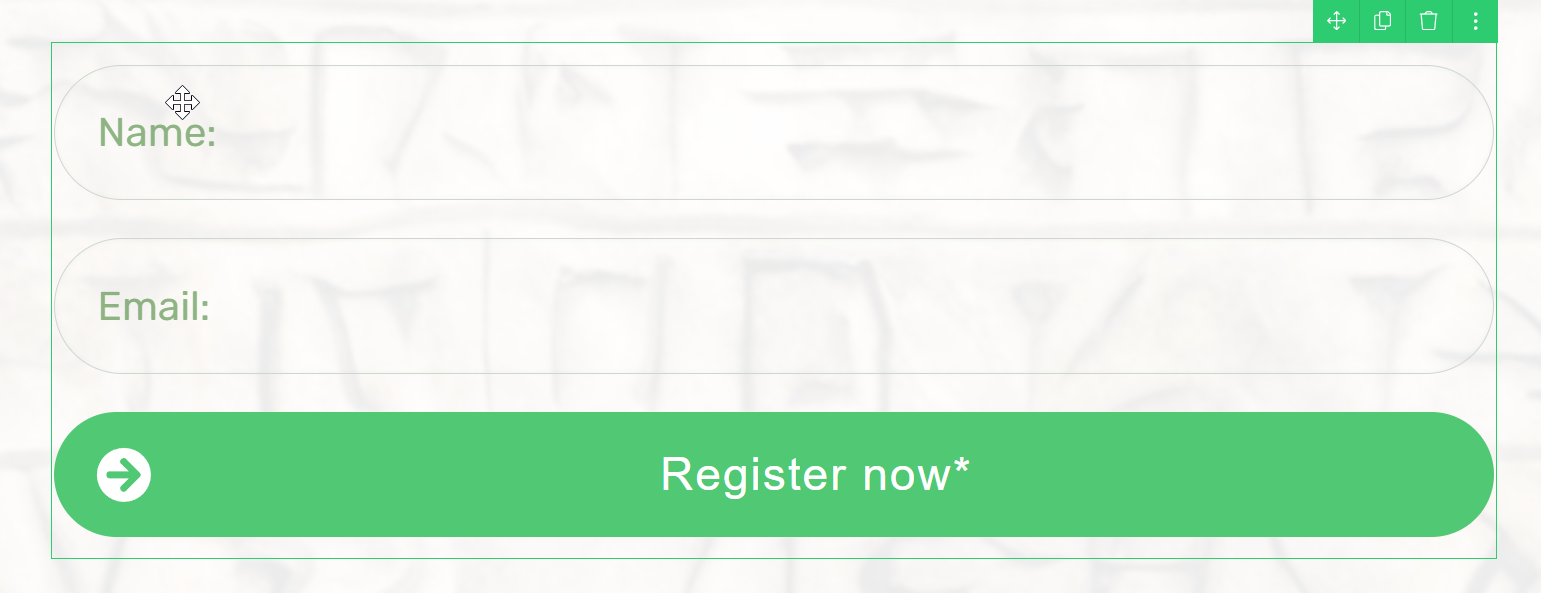
2. See all options in the panel to the left:
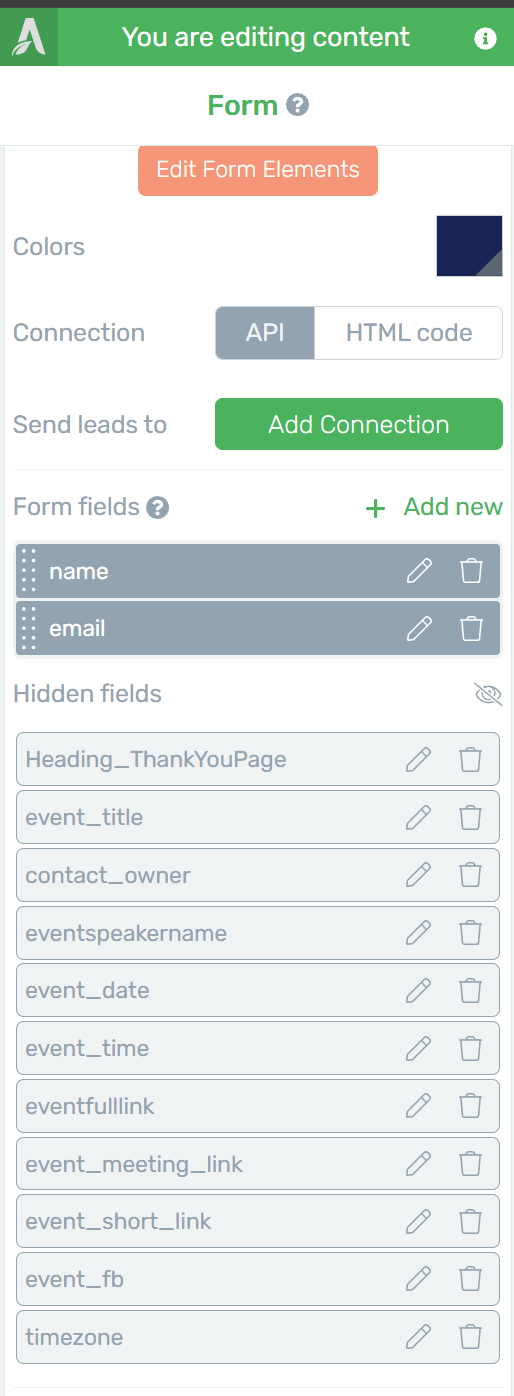
3. Click on the pen for each field and fill in all relevant information about the webinar as "Default Value".
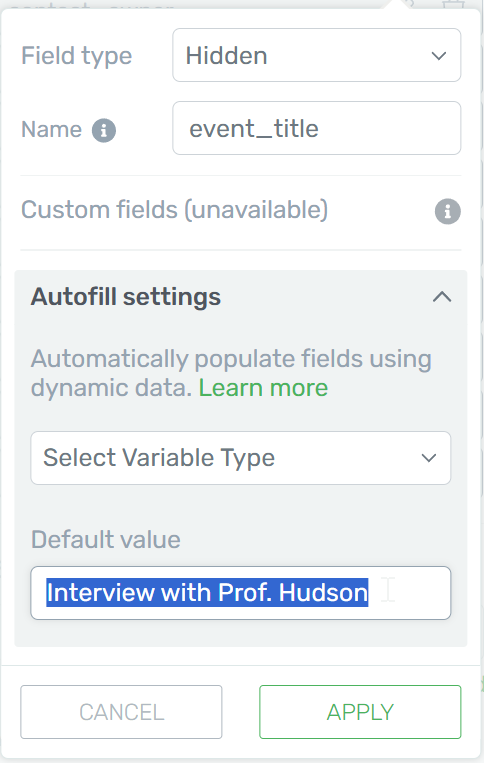
3. SEO settings
Remember to always update the SEO settings, most important is:
1. Settings for Facebook sharing picture and text
2. Settings for Twitter/X sharing pictire and text
3. Settings for search engines like google.
You update the settings through the YOAST SEO plugin. To access it:
1. Go to wordpress editor of the page/post (Note Thrive architect!)
2. Scroll down.
3. Edit SEO and Social settings here:
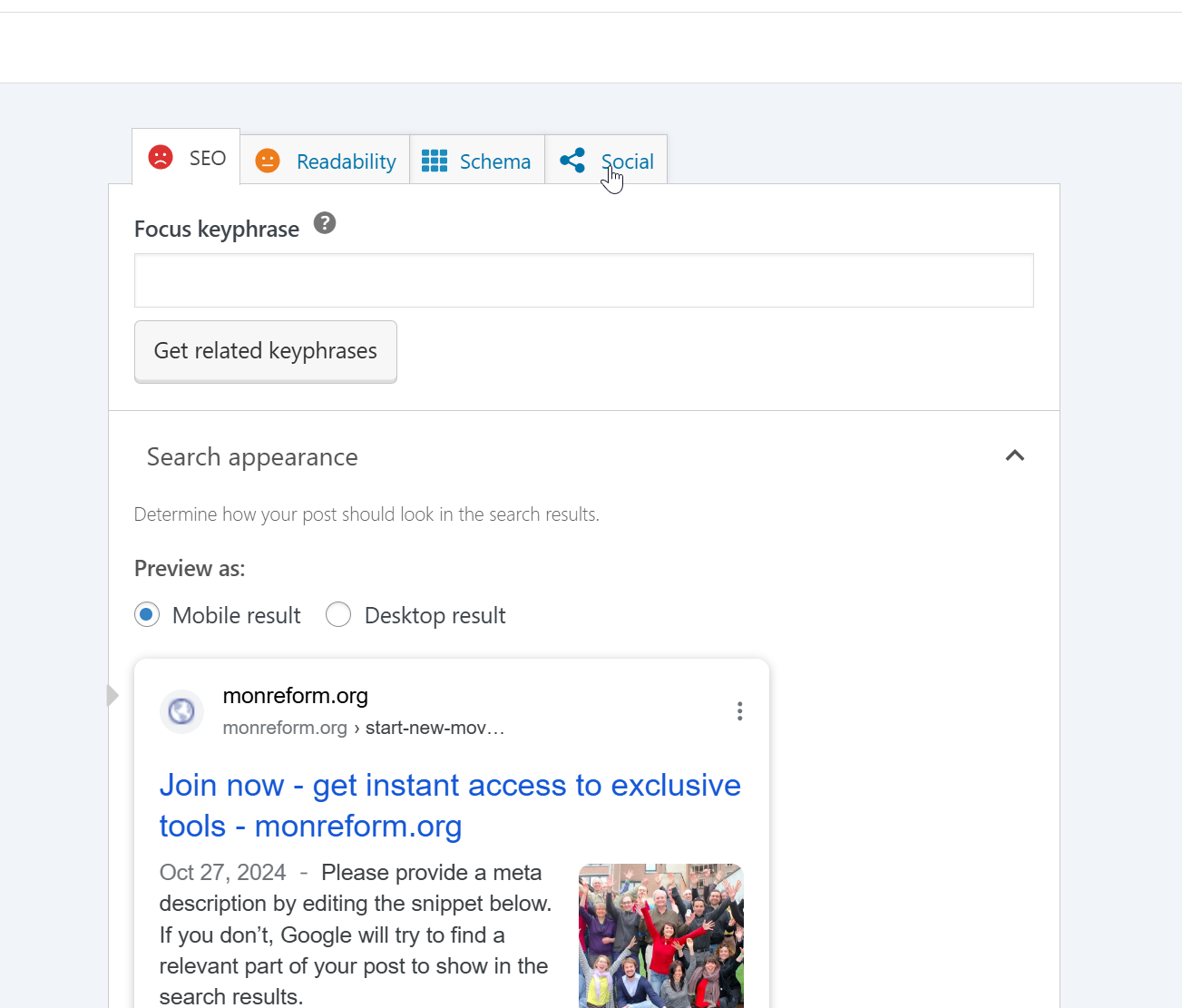
This is important to make sure the page looks good when shared in social media! To preview the result, try copy pasting the link to the landingpage in for instance Facebook and watch if the result is as intended.
4. Launch the webinar
Launch it through email + share landingpage in social media. When someone registers for the webinar they will get an automatic thank you email.
- Test to register yourself, get the thank you email and see that all event details are correct and links in confirmation email works before launching!
- Reminder emails are sent 7 days, 1 days and 2 hours befor the event!
- Video meeting link is delivered in last email 2 hours before.
5. After the webinar
All energy you have put into building a good landingpage - it can continue to generate more subscribers for our movement!
1. Create a second landingpage for the event. Clone the template "Second landingpage for publishing video after event", give it new describing name, for instance "Content after webinar X". 2. Publish full video there, transcripts in different languages, subtitles etc. Note that you have to manually add the link to your original landingpage (C bellow) to the social share buttons on this page! We will probably automate this later.
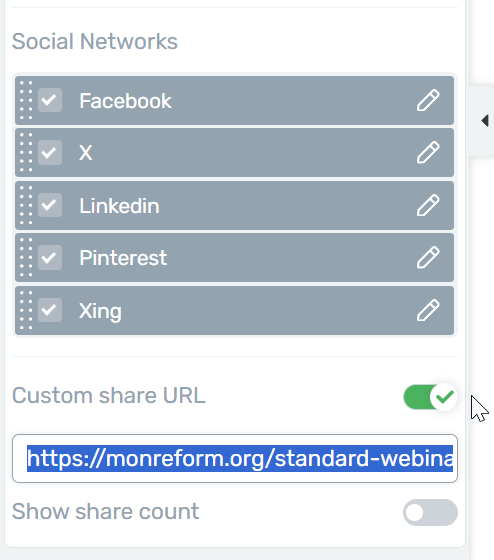
2. Convert original landingpage
Convert the landingpage in the following way:
1. Edit text so it is clear that the event has already been, but you can register to watch it now.
2. Edit the redirect link of the page to https://monreform.org/thank-you-for-subscribing-after-webinar/ (not your second landingpage here!)
3. Add new hidden field (or change name of for instance the video link field to "second_landingpage_url" and add the link to your second landingpage there!
4. Add the short code for direct access above the registration form which include link to your second landingpage. If the user already subscriber for IMMR organization's email list, they can click this link to directly visit your second landingpage without having to register again!
You can test the full flow here with a template example.
NOTE - THIS WAS A SHORT VERSION - READ THE FULL COMPHRENSIVE WEBINAR GUIDE HERE